How to Connect Contact Form 7 to formpuppy (No Plugin)
You can send Contact Form 7 submissions through formpuppy's AI spam filter by changing a single field: the To address in the form's Mail settings. No plugin, no code, and no change to how CF7 works — only the destination of the notification email changes.
Why use formpuppy with Contact Form 7?
Contact Form 7 is one of the most widely used form plugins on WordPress. By default, it sends every submission to the email address you set in the Mail tab. That inbox often fills up with bot spam, cold outreach, and link-building requests, so real inquiries get buried. If you're not sure why standard spam filters and CAPTCHAs miss most of this noise, this article explains the full picture.
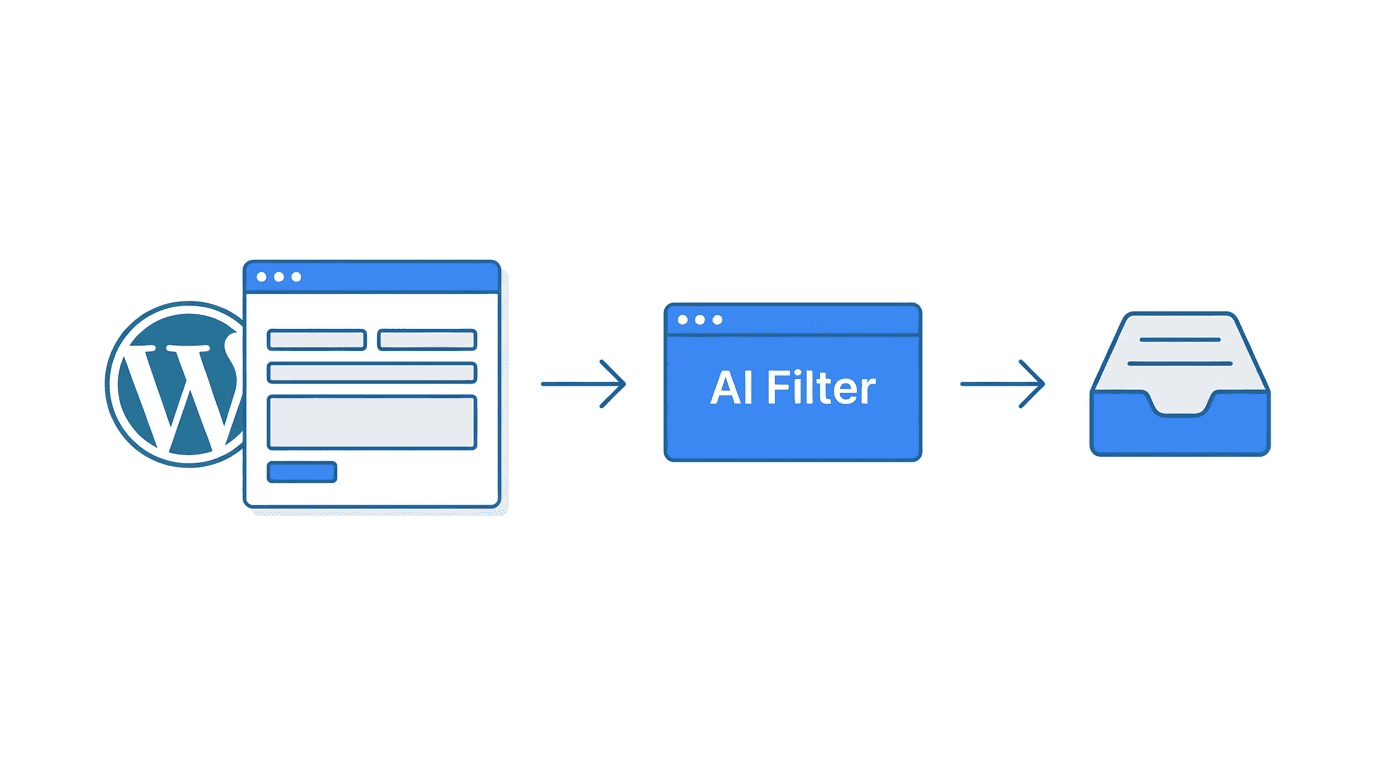
formpuppy sits in the middle: submissions still go to an email address, but that address is a formpuppy inbox. The AI classifies each message and forwards only the ones that look like legitimate inquiries to your real inbox. You keep using CF7 as usual; you only change where the mail is sent.
What you need before you start
- A formpuppy account and at least one project.
- The formpuppy email address for that project (e.g.
you@yourproject.formpuppy.com). You get this in the formpuppy dashboard after creating a project. - Your real inbox address set as the forward destination in formpuppy (so that non-spam messages are delivered there).
Step 1: Open the form's Mail settings
In WordPress, go to Contact → Contact Forms, then edit the form you want to protect. Open the Mail tab. You will see fields for To, From, Subject, and Message body.
Step 2: Set the To address to your formpuppy address
In the To field, replace the current email (often your site admin or a generic contact address) with your formpuppy project address.
Before (example):
yourname@yourdomain.com
After (example):
you@yourproject.formpuppy.com
Use the exact address shown in your formpuppy dashboard for that project. Leave From, Subject, and Message body as they are unless you have a specific reason to change them. CF7 will still send the same submission content; only the recipient changes.
Step 3: Save the form
Click Save at the top of the form editor. No further configuration in WordPress is required.
Step 4: Confirm the forward destination in formpuppy
In the formpuppy dashboard, open your project and check that the Forward to (or equivalent) address is set to the inbox where you want to receive real inquiries. Only messages that formpuppy classifies as non-spam are sent there. Blocked messages stay in the formpuppy dashboard so you can review or recover them.
Optional: Mail (2) and other tabs
Contact Form 7 supports a second mail template (Mail (2)), often used for auto-replies to the user. You do not need to change Mail (2) for formpuppy to work. formpuppy only needs to receive the main notification (the To in the first Mail tab). If you use Mail (2) to send a copy to the site owner, you can either leave it as is or point it to the same formpuppy address for consistency; formpuppy will deduplicate by content.
How to verify it works
- Submit a test message through your CF7 form (use a real-looking message, not obvious spam).
- In formpuppy, confirm the message appears and is classified (e.g. as forward or block).
- Check that messages classified as forward arrive in your real inbox.
If a legitimate test is blocked, open it in the formpuppy dashboard and use the feedback option so the filter can improve.
Frequently Asked Questions
Do I need a plugin to use formpuppy with Contact Form 7?
No. formpuppy works at the email layer. You only change the To address in the CF7 Mail tab to your formpuppy project address. No WordPress plugin is required.
Will this break my existing form or emails?
No. The form fields, validation, auto-reply messages, and submission content all stay exactly the same. Only the recipient of the admin notification email changes. Contact Form 7 continues to operate as normal — it simply sends to a different address. If you ever want to stop using formpuppy, change the To address back to your original inbox and submissions will arrive there directly again.
Does formpuppy support Japanese or other languages in CF7 submissions?
Yes. formpuppy’s AI can classify messages in multiple languages, including Japanese. If your CF7 form receives inquiries in Japanese, formpuppy will still filter them and forward legitimate ones to your inbox.
Can I use formpuppy with multiple Contact Form 7 forms?
Yes. You can use one formpuppy project and one address for all of them, or create separate projects (and addresses) per form if you want separate dashboards and forward destinations. In each form, set the Mail To field to the chosen formpuppy address.
What if a real inquiry is marked as spam?
Blocked messages are stored in your formpuppy dashboard. You can open any message, read it, and if it was a false positive, mark it so. That feedback is used to improve classification. You can also forward or handle the inquiry manually from the dashboard.
Summary
To connect Contact Form 7 to formpuppy, edit your form, open the Mail tab, and set the To field to your formpuppy project email address. Save the form. Ensure your real inbox is set as the forward destination in formpuppy. After that, all CF7 submissions go through the AI filter first, and only non-spam messages reach your inbox — with no plugin and no code changes.
To get your formpuppy address and start filtering CF7 submissions by intent — not just keyword patterns — sign up at formpuppy and create a project.