Contact Form Spam on Webflow, Typeform & No-Code Builders
You built your site on Webflow, Tally, Typeform, or another no-code tool. Everything works great — until the contact form becomes a daily stream of sales pitches and SEO agency emails. The problem isn't the platform; it's that no-code forms were designed to make capturing submissions easy, not to filter what gets through. Here's a fix that works across all of them with one setting change.
Why no-code forms struggle with spam
No-code form builders are platform-neutral by design. They're excellent at collecting data and routing notifications, but spam filtering is not their core product. Most offer:
- Basic honeypot fields: Hidden form inputs that bots sometimes fill in. Effective against the simplest scripts, useless against human senders.
- reCAPTCHA integration: Blocks bot submissions but does nothing against human cold outreach — which is often the majority of the noise.
- Keyword filters (some platforms): Brittle, easy to route around, and require constant maintenance.
Webflow's built-in spam protection, for example, uses reCAPTCHA. Tally offers honeypot protection. Typeform has no built-in spam filter at all. None of these address the human-written sales email your form receives the day after you appear on a directory or get some traffic. For a deeper look at why CAPTCHAs miss this category of noise, see Why CAPTCHAs Don't Stop Contact Form Spam.
Why notification-based forms are uniquely easy to protect
Here's the upside of no-code forms: they almost all work by sending you an email notification when someone submits. That's actually ideal for email-layer filtering.
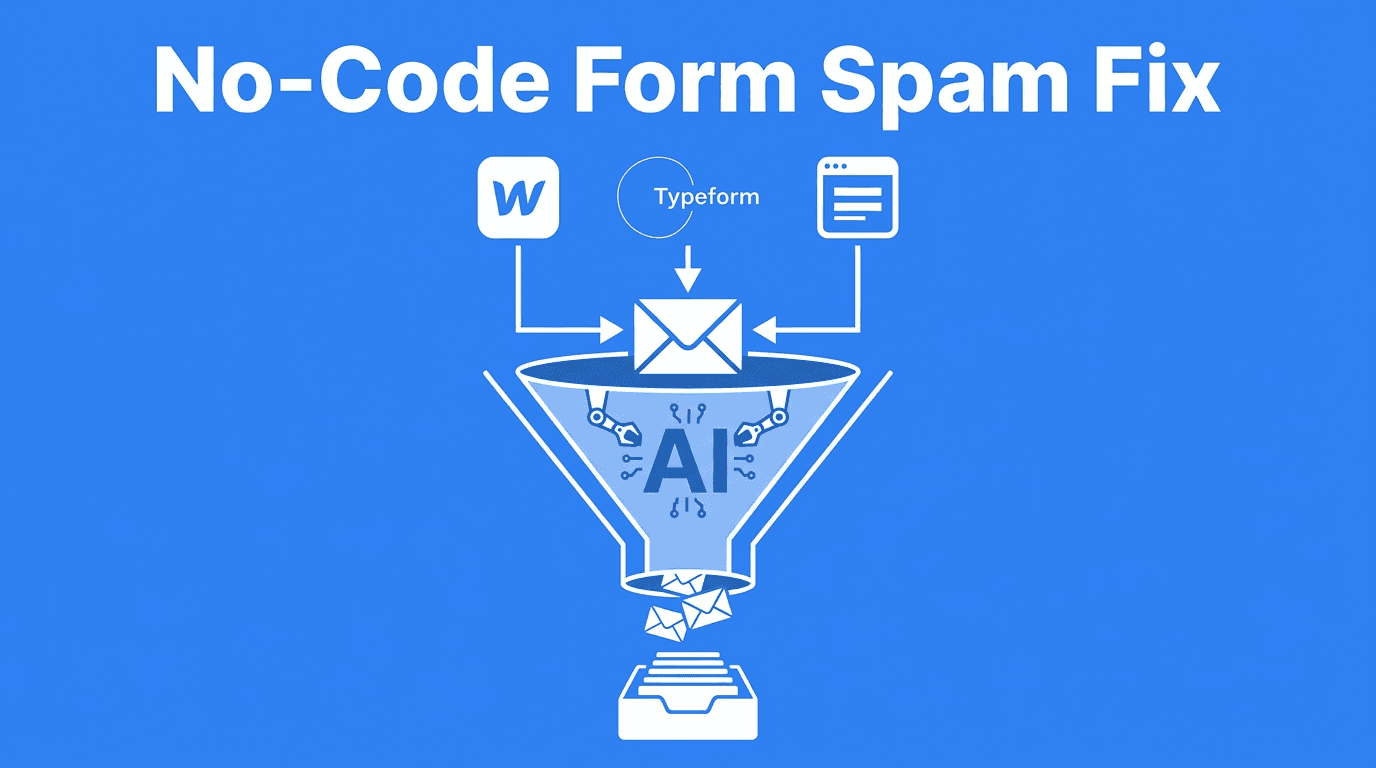
Because the submission arrives as an email, you can intercept it before it hits your inbox — regardless of which form builder created it. The filter doesn't need access to Webflow's API or Typeform's webhook system. It just receives the email.
This means one filtering setup covers all your forms across all platforms. If you use Webflow for your main site, a Tally embed on a landing page, and a Typeform survey link — they all point to the same filter address and go through the same AI.
How to set it up: one field change per form
The process is the same regardless of which no-code tool you use:
- Sign up for an email-layer filter (e.g. formpuppy) and create a project.
- Copy the unique forwarding address you're given (e.g.
yourproject@formpuppy.com). - In your form builder's notification settings, change the "notify to" email from your personal address to the forwarding address.
- In the filter's dashboard, set your real inbox as the forwarding destination.
That's it. From this point, every submission from every form that uses this address goes through the AI before reaching you.
Webflow
In Webflow, go to the Form settings panel → Actions tab → Send email to field. Replace your address with the filter address.
Typeform
In Typeform, open your form → Connect tab → Email notifications → change the recipient email.
Tally
In Tally, go to Integrations → Email → Notification email and update the address.
For any other platform, look for "Notification email," "Send responses to," or "Submission alert email" — it's always a single field.
What the filter catches that CAPTCHAs miss
Email-layer AI filtering evaluates the content of each submission, not how it was submitted. This means it catches:
- Human-written sales outreach: "We help businesses like yours with…" messages that a real person typed.
- AI-generated pitches: Plausible-sounding text written by a language model on behalf of a sales tool.
- Bot floods: High-volume repetitive submissions, even if they somehow bypass your platform's honeypot.
- Off-topic one-liners: Vague messages clearly sent to hundreds of sites at once.
Legitimate questions, genuine customer inquiries, and support requests pass through. The classifier is trained to distinguish intent, not just keywords.
What to do with flagged messages
A good filter doesn't delete rejected messages. It quarantines them in a dashboard where you can review them. This is important because:
- False positives happen occasionally. A real customer might write something that superficially resembles a pitch.
- You can mark incorrectly flagged messages as legitimate, improving the filter's accuracy over time.
- Your quarantine is an audit trail — you can always verify that a real inquiry wasn't silently dropped.
Frequently Asked Questions
Does this work if my form sends to multiple email addresses? Yes. You can add the filter address as one of the recipients. Most form builders support multiple notification recipients. For the cleanest setup, route only to the filter and let the filter forward to your real address — this way you don't get unfiltered copies alongside filtered ones.
Will my Webflow (or Typeform, Tally) form stop working during setup? No. You're only changing where the notification email goes. The form itself continues to submit normally. If you make a mistake with the address, you'd just stop receiving notifications — not break the form.
Does the filter learn from my specific form's content? Most AI filters start with a general spam model and improve based on your feedback. When you mark a message as incorrectly classified, the system adjusts for your context over time.
What if I use a form that sends a webhook, not an email? Email-layer filtering specifically works with email-based notifications. If your form sends a webhook and you've set up your own email notification through Zapier or Make, you can still route that email through the filter. If you receive no email notification at all, you'd need a different approach.
Can I filter form submissions from more than one site? Yes. You can create multiple projects in the filter dashboard, one per site or domain, each with its own forwarding address. Or use the same address for all forms and rely on the dashboard to track which project each message came from.
Summary
No-code form builders are great at collecting submissions, but spam filtering is not their strength. Since they all deliver submissions via email notification, email-layer AI filtering is a natural fit — one setup, one field change per form, covering Webflow, Typeform, Tally, and any other platform that sends notifications by email. The AI evaluates intent, not just whether a bot filled in the form, so human cold outreach gets caught too.
formpuppy gives you one filter address that covers every form on every platform. Point your Webflow, Typeform, Tally, or any other notification email at it — one field change each, no plugin required.